How to Set Up a Nonprofit Chart of Accounts for Grant Tracking in QuickBooks Online
Setting up a clean nonprofit Chart of Accounts is one of the most important steps for accurate grant tracking in QuickBooks Online.
If your Chart of Accounts is messy, your grant reports will be messy too.
Many nonprofits make the same mistake when they receive grants. They create a separate income account for every single grant.
For example, they may create income accounts like:
- ABC Foundation Grant
- Youth Program Grant
- City Grant
- Federal Grant
- Food Assistance Grant
At first, this may seem organized. But over time, it creates a long, confusing Chart of Accounts that becomes harder to manage.
The better way is simple:
Use the Chart of Accounts to show the type of money. Use Projects to show the specific grant.
That one rule can make grant tracking in QuickBooks Online much easier.
Why the Nonprofit Chart of Accounts Matters for Grant Tracking
Your Chart of Accounts is the foundation of your nonprofit accounting system.
It tells QuickBooks Online how to organize your income, expenses, assets, liabilities, and net assets.
For nonprofits, this matters because not all money is treated the same.
Some money is restricted. That means the donor or funder gave the money for a specific purpose.
Some money is unrestricted. That means your nonprofit can decide how to use the money.
If your accounts are not set up correctly, your reports may not clearly show the difference between restricted and unrestricted funds. That can create problems when preparing board reports, grant reports, financial statements, or audit schedules.
A clean nonprofit Chart of Accounts helps you see:
- What type of income came in
- Whether the income was restricted or unrestricted
- What the money was spent on
- How grant revenue and expenses are organized
- Whether reports are easy to review
But your Chart of Accounts should not do every job by itself.
The Simple Rule for Grant Tracking in QuickBooks Online
When tracking grants in QuickBooks Online, each tool should have one clear job.
Here is the simple rule:
Chart of Accounts
The Chart of Accounts answers:
What type of money is this?
It tells you whether the income is grant revenue, contribution revenue, program service revenue, or another type of income.
It also tells you what kind of expense was paid, such as salaries, rent, supplies, professional fees, or program costs.
Projects
Projects answer:
Which specific grant does this belong to?
Each individual grant should be tracked as its own Project in QuickBooks Online.
The income account tells you the money is restricted grant revenue.
The Project tells you which grant it came from.
Classes
Classes answer:
What function was this used for?
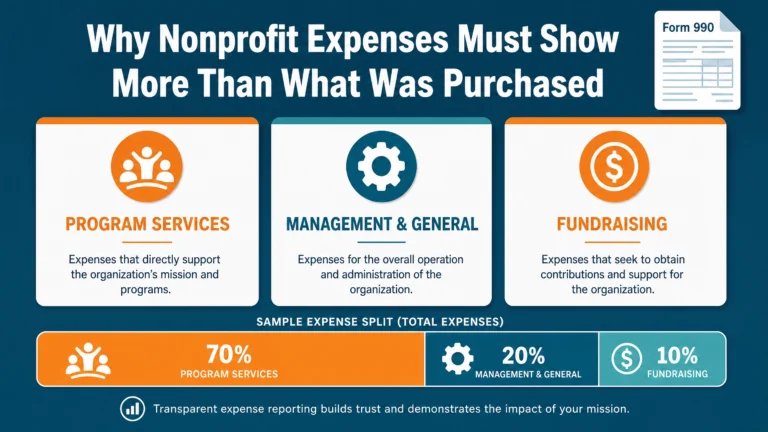
For nonprofits, Classes are usually used for functional reporting, such as:
- Program
- Management and General
- Fundraising
This helps your nonprofit organize expenses based on how the money was used.
When each tool has a clear job, your QuickBooks file stays cleaner and your nonprofit financial reports become easier to read.
Do Not Create a Separate Income Account for Every Grant
One of the biggest mistakes nonprofits make in QuickBooks Online is creating one income account for every grant.
You do not need a separate income account for each grant.
Instead, your nonprofit should usually have one account for restricted grant revenue and one account for unrestricted grant revenue.
For example:
Grant Revenue — Restricted
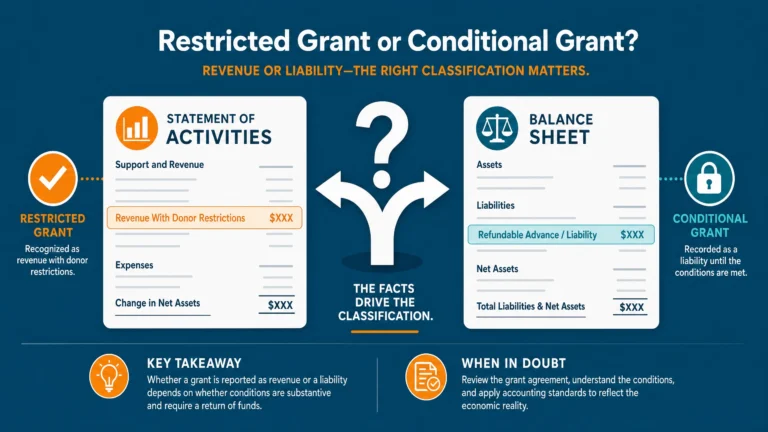
Use this account when the funder gives your nonprofit grant money that must be used for a specific purpose, at a specific time, or based on certain conditions.
Grant Revenue — Unrestricted
Use this account when the funder gives your nonprofit grant money with no restrictions.
The account tells you what type of money it is.
The Project tells you which specific grant it came from.
This keeps your nonprofit Chart of Accounts clean, simple, and easier to maintain.
Example of the Right Grant Tracking Setup
Let’s say your nonprofit receives three grants:
- A $50,000 grant for a youth program
- A $25,000 grant for food assistance
- A $10,000 general operating grant
The youth program grant and food assistance grant are restricted because the funders told you how the money must be used.
The general operating grant is unrestricted because the funder allowed your organization to use it for general needs.
In QuickBooks Online, you would not create three separate income accounts.
Instead, your setup would look like this:
| Grant | Income Account | Project |
|---|---|---|
| Youth Program Grant | Grant Revenue — Restricted | Youth Program Grant |
| Food Assistance Grant | Grant Revenue — Restricted | Food Assistance Grant |
| General Operating Grant | Grant Revenue — Unrestricted | N/A |
This setup keeps your Chart of Accounts simple.
The income account shows whether the grant revenue is restricted or unrestricted.
The Project shows which grant the money belongs to.
Contribution Revenue — Restricted
Use this account when an individual donor gives money and tells your nonprofit how it must be used.
For example, a donor gives $5,000 and says it must be used for scholarships.
That is restricted contribution revenue.
In-Kind Contributions — Restricted
Use this account for non-cash donations that come with restrictions.
Examples include:
- Donated supplies
- Donated equipment
- Donated materials
If the donor says the item must be used for a specific purpose, it should be treated as restricted.
Unrestricted Revenue Accounts
Unrestricted revenue is money your nonprofit can use where it is needed.
The donor or funder does not place specific limits on the money.
Contribution Revenue — Unrestricted
Use this account for general donations.
Examples include:
- Online donations
- Annual fund gifts
- General donor checks
- Giving campaign donations with no specific purpose attached
The donor gave the money, but did not tell your nonprofit exactly how to spend it.
Program Service Revenue
Program service revenue is earned income.
This is not grant money or donated money.
Examples include:
- Workshop fees
- Registration fees
- Training fees
- Program fees
- Service fees
Because this income is earned by the nonprofit, it usually belongs on the unrestricted side.
Use Account Numbers to Organize Restricted and Unrestricted Revenue
Account numbers can make your nonprofit’s Chart of Accounts easier to read.
For example, you may use one number group for restricted revenue and another number group for unrestricted revenue.
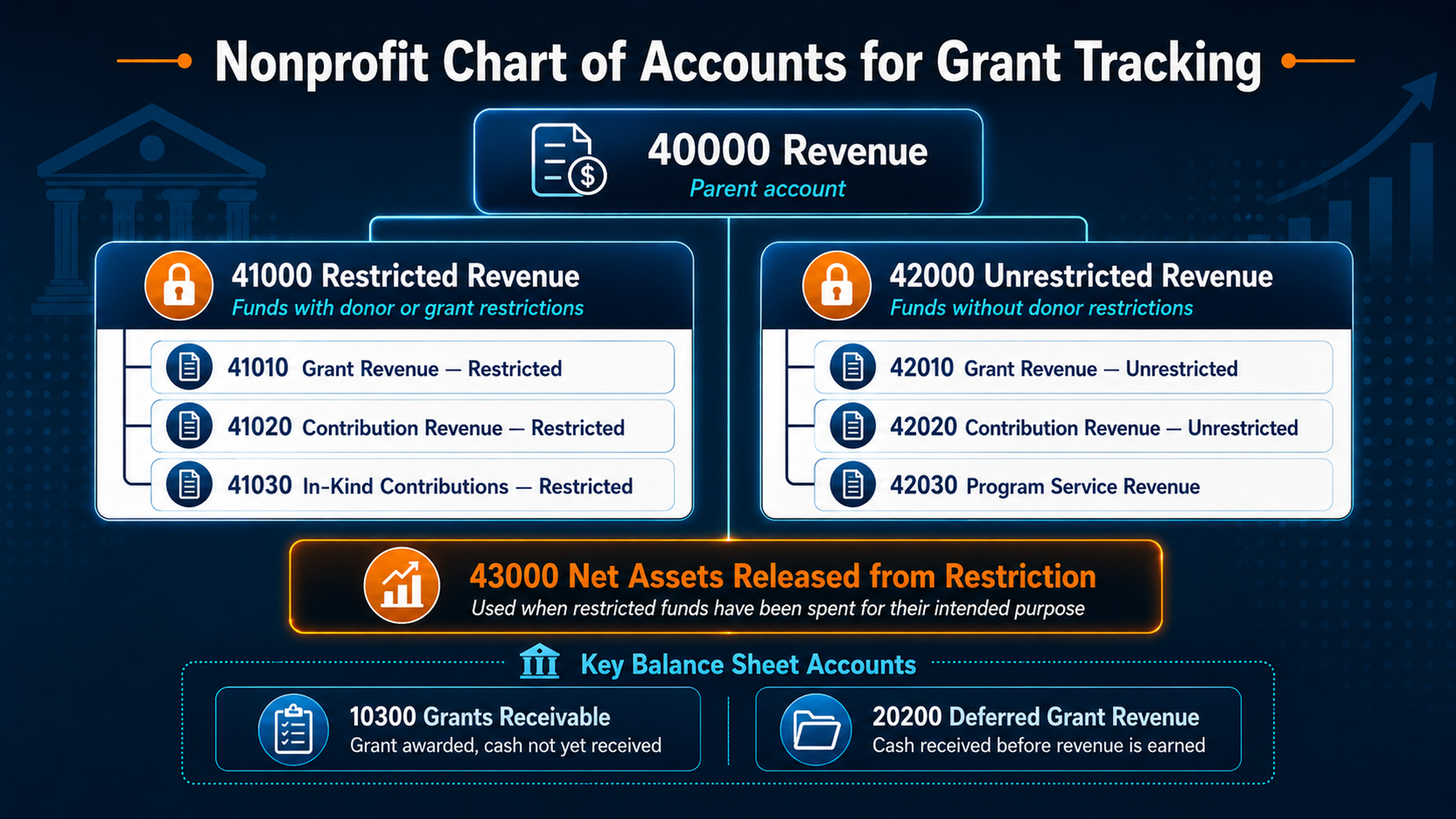
A simple structure could look like this:
| Account Number | Account Name |
|---|---|
| 41010 | Grant Revenue — Restricted |
| 41020 | Contribution Revenue — Restricted |
| 41030 | In-Kind Contributions — Restricted |
| 42010 | Grant Revenue — Unrestricted |
| 42020 | Contribution Revenue — Unrestricted |
| 42030 | Program Service Revenue |
With this setup:
- Accounts starting with 41 are restricted.
- Accounts starting with 42 are unrestricted.
This makes nonprofit financial reports easier to scan.
When you look at a transaction, report, or account list, you can quickly tell whether the income is restricted or unrestricted.
That is helpful for bookkeepers, executive directors, board members, and auditors.
What Is Net Assets Released from Restriction?
One account that often confuses nonprofits is:
Net Assets Released from Restriction
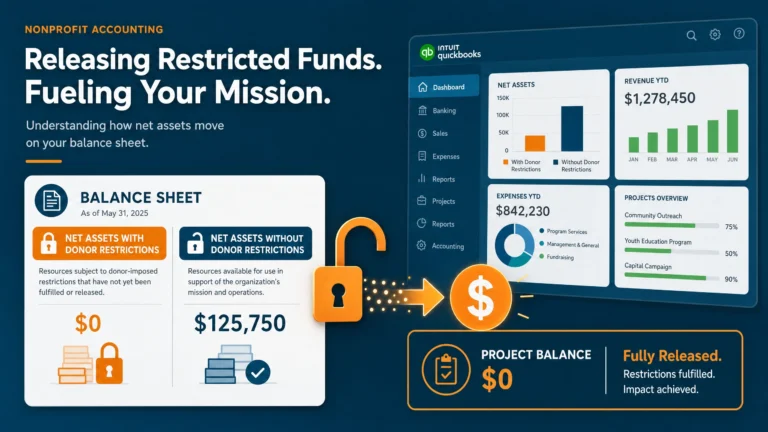
This account is used when restricted money has been used for its required purpose.
Here is a simple example.
Your nonprofit receives a $20,000 restricted grant for a youth program.
At first, that money is restricted because the funder said it must be used for the youth program.
Later, your nonprofit spends the money on approved youth program expenses.
Once the money is spent correctly, the restriction has been met.
At that point, your accounting records need to show that the money is no longer restricted.
This does not mean money is moving in or out of the bank.
The cash already moved when you paid the expense.
The release from restriction is an accounting entry. It shows that your nonprofit honored the funder’s restriction and used the money correctly.
This is usually recorded with a journal entry.
Balance Sheet Accounts for Nonprofit Grant Tracking
Grant tracking can also affect the balance sheet.
Two common accounts are:
Grants Receivable
Grants receivable is an asset account.
Use this account when your nonprofit has been awarded a grant, but the cash has not been received yet.
For example, a funder approves a $50,000 grant in June, but the money will not arrive until July.
If your nonprofit needs to record the grant before the cash arrives, you may use Grants Receivable.
You usually do not need separate grants receivable accounts for restricted and unrestricted grants.
The restriction is already shown through the income account and the Project.
Deferred Grant Revenue
Deferred grant revenue is a liability account.
Use this account when your nonprofit receives grant money before it has earned the right to record it as revenue.
This may happen when:
- The funder gives an advance
- The grant has conditions that are not yet met
- The nonprofit must incur costs before recognizing revenue
- The money may have to be returned if requirements are not met
Until the grant is earned, the money may need to be recorded as a liability instead of income.
This keeps your nonprofit financial reports more accurate.
Should Nonprofits Use Locations in QuickBooks Online?
QuickBooks Online also has a Location feature.
Some nonprofits use Locations to separate restricted and unrestricted funds.
This method can create a side-by-side report showing restricted money in one column and unrestricted money in another column.
That can be useful, but it also adds another layer of work.
If your nonprofit is already using:
- Chart of Accounts
- Projects
- Classes
then Locations may create extra complexity.
Every transaction would need another tag.
If someone forgets to add the Location, your reports may show unclassified amounts. Then you have to spend extra time cleaning up the reports.
For many nonprofits, it is better to keep the system simple:
- Use the Chart of Accounts for the type of money.
- Use Projects for the specific grant.
- Use Classes for the function.
This gives your nonprofit strong grant reporting without making every transaction harder to enter.
Final Thoughts on Setting Up a Nonprofit Chart of Accounts
A good grant tracking system starts with a clean nonprofit Chart of Accounts.
Do not create a separate income account for every grant.
Instead, create one account for restricted grant revenue and one account for unrestricted grant revenue.
Then use Projects in QuickBooks Online to track each specific grant.
This keeps your QuickBooks file cleaner, your reports easier to read, and your grant tracking easier to manage.
When each part of QuickBooks has a clear job, your nonprofit can better understand where grant money came from, where it was spent, and how much remains.
That is the foundation for better nonprofit grant tracking and stronger financial reporting.