How to Release Restricted Funds in QuickBooks Online for Nonprofits
Releasing a restriction is one of the most misunderstood steps in nonprofit grant accounting. Many organizations know they need to track restricted funds — but when it comes to actually releasing those restrictions on the books, the process gets murky fast. This guide walks through exactly when a restriction is released, how the single-column QuickBooks Online method reflects that release in real time, and the precise journal entries you need at year end and in the following fiscal year.
What “Releasing a Restriction” Actually Means
When a donor or funder awards your nonprofit a restricted grant, that money carries a legal obligation. It must be spent on the specific purpose the funder defined — a particular program, population, or activity. Until that spending happens, the restriction remains fully in place.
The restriction is officially released at the moment your organization incurs a qualifying expense. Not when the grant period ends. Not when the final report is submitted to the funder. The moment the expense is recorded for the approved activity — that is when the restriction is released.
Here is a concrete example. A funder awards your organization $25,000 for a youth workforce development program. Your organization pays a program staff member $5,000 from that grant. At the moment that payroll is recorded, $5,000 of the restriction is released. The remaining $20,000 is still restricted because it has not yet been spent on its intended purpose.
Understanding this timing matters for two reasons. First, it tells you where your restricted funds stand at any point during the year. Second, it determines what must happen at year end if any portion of the grant remains unspent.
How the Single-Column Method Shows the Release During the Year
In the single-column QuickBooks Online method — where restricted and unrestricted activity are tracked in the same set of accounts using Projects — the release of restriction is not shown through a separate journal entry during the year. It is shown through the combination of two things: recording restricted income when it arrives and recording expenses as they are incurred, both tagged to the same Project.
Using the City Youth Development Grant as an example, here is what the Project dashboard reflects mid-year:
| Item | Amount | What It Represents |
|---|---|---|
| Grant Revenue — Restricted (41010) | $25,000 | Full grant received and recorded |
| Expenses tagged to Project | $15,000 | Portion of restriction released through spending |
| Project Balance Remaining | $10,000 | Unspent restricted balance — restriction still in place |
Every dollar of expense tagged to the Project represents a dollar of restriction being released. The Project balance decreases in real time as qualifying spending occurs. When the balance reaches zero, the restriction is fully released — every dollar of the grant has been spent on its approved purpose.
This is why tagging every qualifying expense to the correct Project is not optional. Without that tag, the Project balance does not update. Without an accurate Project balance, there is no reliable way to see the release happening in real time — and no reliable number to use at year end.
Running a Profit and Loss filtered by the Project confirms the full picture: Grant Revenue — Restricted at the top, qualifying expenses below it, and the net balance at the bottom. That net figure is the unspent restricted balance — the amount that has not yet been released from restriction.
The Year-End Journal Entry: Moving Unspent Restricted Balances to the Balance Sheet
At the end of your fiscal year, QuickBooks Online automatically closes all income and expense activity into Retained Earnings on the balance sheet. That is standard accounting and it applies to every organization regardless of entity type.
For nonprofits, this automatic close creates a problem that requires a correcting entry.
When that $10,000 unspent restricted balance gets swept into Retained Earnings along with everything else, it sits in an equity account that does not tell the correct story. Retained Earnings looks like unrestricted money available for any purpose. But this $10,000 is not unrestricted. It belongs to the City Youth Development Fund. It must be spent on the youth program. It cannot sit in Retained Earnings as if it is general operating money the organization can use freely.
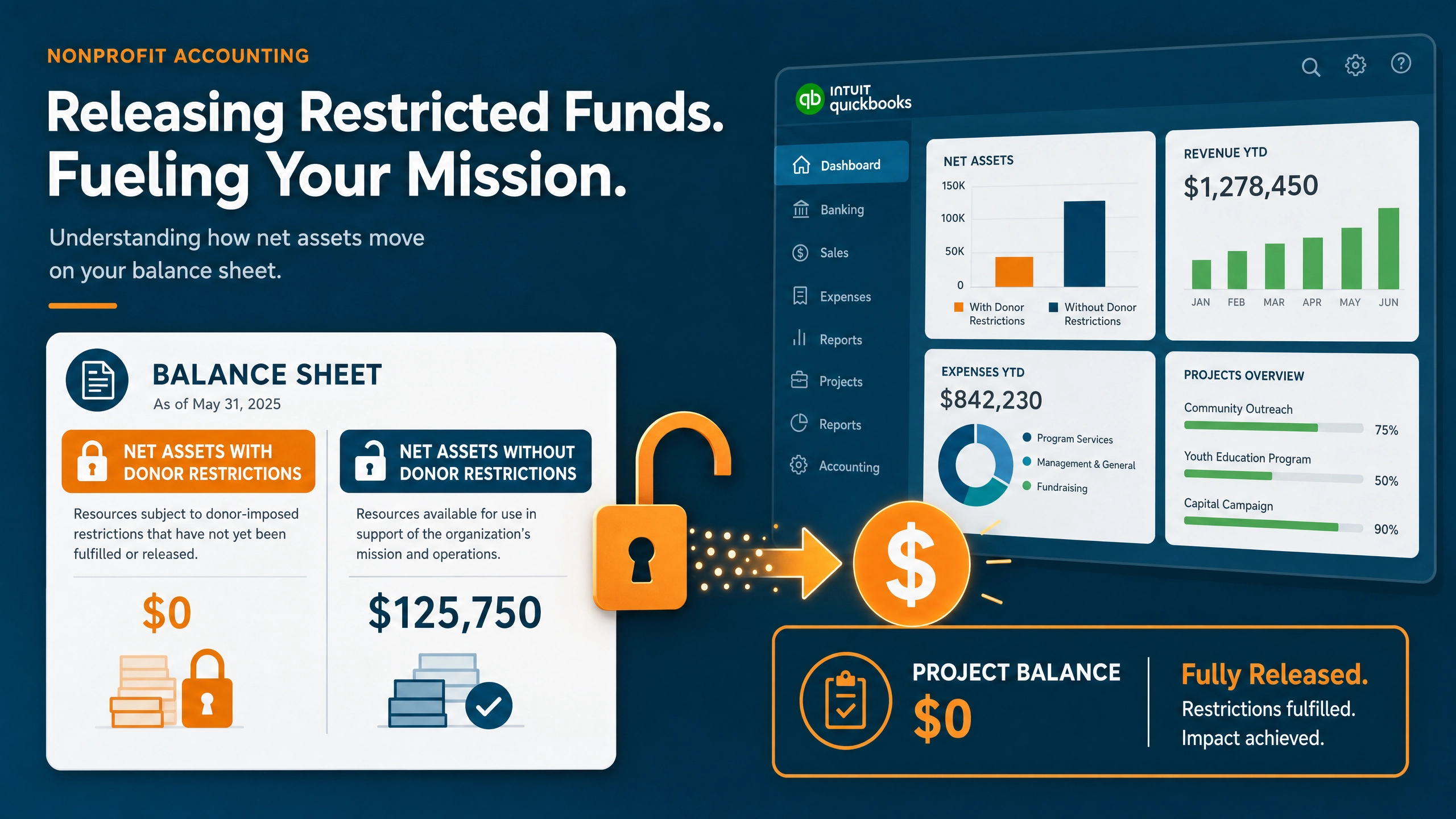
GAAP requires nonprofits to present net assets in two separate categories on the balance sheet: Net Assets With Donor Restrictions and Net Assets Without Donor Restrictions. The year-end journal entry moves the unspent restricted balance into its correct category.
Year-End Journal Entry — Reclassifying Unspent Restricted Balance
| Line | Account | Debit | Credit | Description |
|---|---|---|---|---|
| 1 | Retained Earnings | $10,000 | City Youth Development Grant 2025 — Unspent Restricted Balance Year End | |
| 2 | Net Assets With Donor Restrictions | $10,000 | City Youth Development Grant 2025 — Unspent Restricted Balance Year End |
Line one debits Retained Earnings, pulling the unspent restricted balance out of the account where QuickBooks automatically placed it at close. Line two credits Net Assets With Donor Restrictions, placing the unspent balance in its correct home on the balance sheet — clearly labeled as restricted and clearly separate from unrestricted net assets.
If your organization has multiple restricted grants with unspent balances at year end, make this entry for each grant individually, or combine them into a single entry with one line per grant as long as the descriptions clearly identify each fund.
After this entry, the Net Assets section of your balance sheet will show two distinct lines: Net Assets Without Donor Restrictions and Net Assets With Donor Restrictions. Your board, your auditor, and your funders can immediately see how much of your organization’s net assets are restricted and cannot be used freely.
The Following Year: Recording the Final Release
The grant period continues into the following fiscal year. Your organization spends the remaining $10,000 on approved youth program activities. The expenses are recorded exactly as they have been throughout the grant period — debiting the appropriate program expense account, crediting cash, and tagging the Project and Class.
However, recording the expense alone does not complete the picture. The $10,000 sitting in Net Assets With Donor Restrictions on the balance sheet is still there. The balance sheet does not automatically update just because an expense was recorded. A second journal entry is required to release that balance from the restricted equity account.
Final Release Journal Entry — Following Year
| Line | Account | Debit | Credit | Description |
|---|---|---|---|---|
| 1 | Net Assets With Donor Restrictions | $10,000 | City Youth Development Grant 2025 — Restriction Released — Final Spend | |
| 2 | Retained Earnings | $10,000 | City Youth Development Grant 2025 — Restriction Released — Final Spend |
Line one debits Net Assets With Donor Restrictions, reducing the restricted balance on the balance sheet. The obligation has been met — the money was spent for its intended purpose. Line two credits Retained Earnings, returning the balance to the unrestricted side because the restriction has been fully released.
After this entry, the Net Assets With Donor Restrictions balance for this grant is zero. The restriction is fully released. Every dollar of the grant has been spent on exactly what the funder required, and the balance sheet reflects it accurately.
Account 43000 — Net Assets Released from Restriction: When It Is and Is Not Used
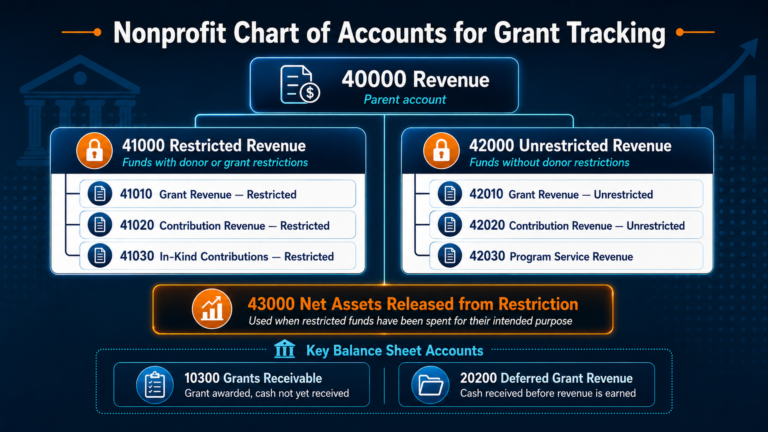
If your Chart of Accounts follows the structure used in this series, you have an account called Net Assets Released from Restriction (43000). You may have noticed that account does not appear in any of the entries above.
In the single-column method, the release of restriction is shown through the restricted income accounts, the expense accounts, the Project balances, and the year-end balance sheet entries described in this post. Account 43000 is not needed in this method. The story is told through the account structure and Project tagging without it.
Account 43000 becomes essential when using the two-column Location method — where Restricted Revenue and Unrestricted Revenue appear side by side on the same Statement of Activities. In that method, account 43000 is the account that moves the balance visually from the restricted column to the unrestricted column on the report. A dedicated post will cover the Location method in full, including exactly how account 43000 is used and how the entries differ from what is described here.
What Clean Grant Accounting Looks Like at Cycle Close
At the end of a complete grant cycle — from award through final spend — a properly maintained set of books will show the following:
- Net Assets With Donor Restrictions balance for the grant: $0
- Project balance: $0
- All qualifying expenses fully recorded and tagged to the correct Project and Class
- Balance sheet net asset section clearly separated into restricted and unrestricted categories
That is what your funder wants to see when they request a financial report. That is what your auditor expects when they review your year-end financials. And that is what the Project-based tracking system in QuickBooks Online is designed to produce when it is set up and maintained correctly.
If your organization is managing multiple grants simultaneously, the same logic applies to each one. Each grant has its own Project, its own income account, its own expense tagging, and its own year-end reclassification entry if unspent balances remain. The system scales — as long as the tagging discipline holds throughout the year.
Key Takeaways
- A restriction is released at the moment a qualifying expense is incurred — not at grant period end or report submission.
- In the single-column method, the release is visible through the Project balance decreasing as expenses are tagged.
- At year end, a journal entry moves unspent restricted balances from Retained Earnings to Net Assets With Donor Restrictions on the balance sheet.
- In the following year, a second journal entry releases the balance from Net Assets With Donor Restrictions back to Retained Earnings once the remaining funds are spent.
- Account 43000 is used in the two-column Location method — not the single-column method.
- A fully released grant shows a $0 Project balance and a $0 Net Assets With Donor Restrictions balance for that fund.
Need help setting up your grant tracking system in QuickBooks Online or reviewing your year-end journal entries? Our nonprofit accounting team works exclusively with tax-exempt organizations and can help you build a system that holds up under audit and funder review.